
KeyStar can turn your phone into a physical remote for a device paired through KDE Connect. Create a KDE Connect app context, then assign an Intent action to each button press. Each intent sends the device's device ID and a saved command ID to KDE Connect, which runs that command on your device.
Before you start
Your phone's volume buttons can act like the buttons on a physical remote: play or pause, seek through a video, or skip tracks on your computer. KeyStar decides what each press does, and KDE Connect sends the command to the paired computer.
- KeyStar on your Android phone, with setup completed and its service enabled. Volume button mapping is free. Follow the setup guide if you have not granted the required access yet.
- KDE Connect installed on both your phone and computer, with the devices paired and connected, for example over the same Wi-Fi network.
- KDE Connect's Run commands feature enabled and the commands you want to use saved on the computer.
First get the commands working and collect their IDs. Then create the KeyStar context and button actions.
1. Set up and test your KDE Connect commands
- Open KDE Connect settings on your computer and select your phone. Enable Run commands and open its configuration.
- Add a named command for each remote action. For this example, create Play / Pause, Seek forward, Seek backward, Next, and Previous. Each entry needs a name and a command that works on your computer.
- Test from your phone. Open KDE Connect, select the computer, and open Run command. Tap each command and confirm that it controls the intended player.
KDE's adding commands guide covers the desktop configuration. These are saved Run commands; the intents below do not press KDE Connect's on-screen multimedia controls.
Example media commands
If you use Linux, install playerctl with your distribution's package manager and try these commands with a compatible media player running.
On Windows, you can use AutoHotkey to send media commands, saving the commands in .ahk files.
| Name | Command (playerctl) | Command (AutoHotkey) |
|---|---|---|
| Play / Pause | playerctl play-pause | Send("{Media_Play_Pause}") |
| Seek forward | playerctl position 10+ | Send("l") |
| Seek backward | playerctl position 10- | Send("j") |
| Next | playerctl next | Send("{Media_Next}") |
| Previous | playerctl previous | Send("{Media_Prev}") |
The seek examples move by ten seconds. Player support varies. If several players are open, use playerctl --list-all to find their names and select one, for example playerctl --player=vlc play-pause. See the playerctl documentation for details.
2. Find your computer's device ID
On the computer you want to control, open a terminal and run:
kdeconnect-cli --my-id
Copy the printed ID exactly and keep it handy. This is the value you will use for TARGET_DEVICE. It identifies the computer in KDE Connect; it is different from the computer's display name or IP address.
On Windows, the executable is kdeconnect-cli.exe. If it is not found, open a terminal in KDE Connect's installation folder and run .\kdeconnect-cli.exe --my-id in PowerShell, or run the executable using its full path.
3. Find the saved command IDs
Each saved Run command has its own ID. The intent needs that ID, rather than the command's display name or shell command.
- On the computer, identify your phone's ID. Run
kdeconnect-cli --list-devicesand find your phone by name. On Windows, use.\kdeconnect-cli.exe --list-devicesfrom the installation folder if needed. - Open the saved Run commands file for that phone. Use the locations below, replacing
PHONE_IDwith your phone's ID. Open the file in a text editor to read it. - Find each command by its
name. Copy the JSON key immediately before its object. That is the command ID. Keep any braces that are part of the ID, but omit the surrounding quotation marks.
- Linux:
~/.config/kdeconnect/PHONE_ID/kdeconnect_runcommand/config. If you use a customXDG_CONFIG_HOME, look under itskdeconnectfolder instead. - Windows: start at
%LOCALAPPDATA%\kdeconnect\PHONE_ID\kdeconnect_runcommand\config. If the file is not there, open%LOCALAPPDATA%\Packages, find the KDE Connect package folder, then look underLocalCache\Local\kdeconnect\PHONE_ID\kdeconnect_runcommand\config. KDE's Windows command notes describe this location.
For example, a command entry may look like this inside the saved commands value, sometimes with escaped quotation marks and line breaks:
"{12345678-1234-1234-1234-123456789abc}": {"name": "Play / Pause", "command": "playerctl play-pause"}
In that example, copy 12345678-1234-1234-1234-123456789abc as the Play / Pause command ID. It is only an illustration; use the actual key from your file. Repeat for all five actions.
Keep the two device IDs straight: the folder on your computer is named after the paired phone, because these commands are configured for that phone. The intent's TARGET_DEVICE must still contain the computer's ID from --my-id.
The CLI's --list-commands option lists commands offered by a remote device. Running it on the computer with your phone selected does not list the computer's own saved commands. Read the local configuration file for this setup.
4. Create a KDE Connect context in KeyStar
- Open Volume Up in KeyStar. Enable its button mapping. In this example, we are using the volume keys. However, KeyStar also supports the power button and navigation buttons (on some devices).
- Use the plus button beside the contexts. Add an app context and select KDE Connect.
- Select the KDE Connect context. Configure the remote actions in this context so they apply when KDE Connect is the foreground app. You can choose a difference context if you prefer running the commands anywhere or in a different app.
Contexts let the same buttons do different things in different apps. Keep your usual actions in General and use the KDE Connect context for your computer remote. Follow any KeyStar prompts for Accessibility access so it can identify the foreground app and handle volume presses.
5. Set up the Intent action
Start with Volume Up → KDE Connect context → Single. Choose the System → Intent action and fill in the following fields for Play / Pause.
| Field | Value |
|---|---|
| Description | A label such as KDE Connect: Play / Pause |
| Action | RUN_COMMAND_ACTION |
| Extra 1 | TARGET_DEVICE:YOUR_COMPUTER_ID |
| Extra 2 | TARGET_COMMAND:YOUR_PLAY_PAUSE_COMMAND_ID |
| Package | org.kde.kdeconnect_tp |
| Class | org.kde.kdeconnect.plugins.runcommand.RunCommandWidgetProvider |
| Target | Broadcast Receiver |
Replace YOUR_COMPUTER_ID and YOUR_PLAY_PAUSE_COMMAND_ID with the actual IDs you collected. Each extra is one key:value entry: keep the colon, enter the ID immediately after it, and do not add quotation marks.
Leave Categories (comma-separated), MIME Type, Data URI, Extra 3, and Extra 4 empty. Change the Target dropdown from its default Activity to Broadcast Receiver, then tap Confirm and save the button configuration with the checkmark.
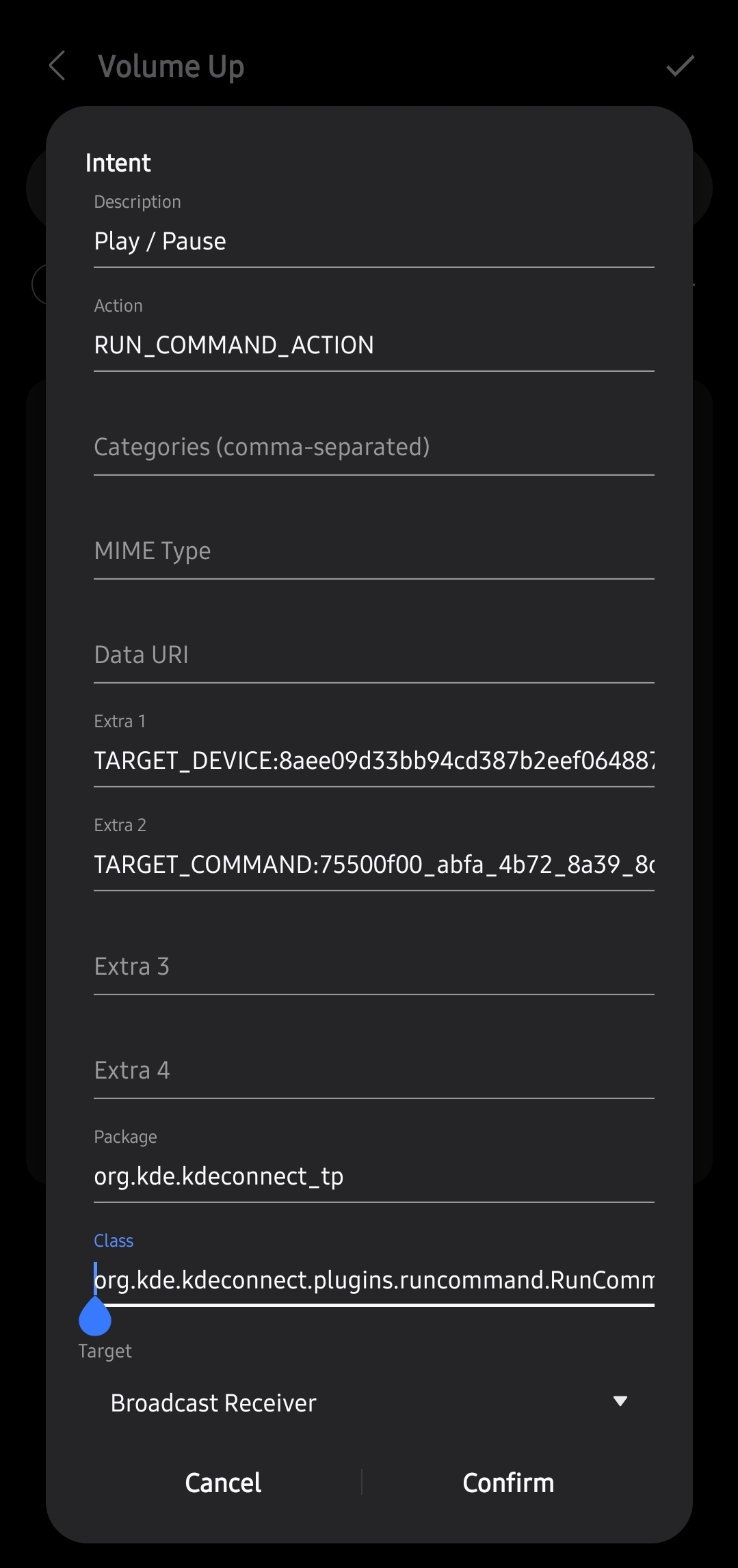
KDE Connect's command receiver reads TARGET_DEVICE and TARGET_COMMAND as text values and sends the selected command to the paired computer.
6. Add the full remote layout
In the KDE Connect context for each button, use this example configuration:
| Button | Trigger | Command |
|---|---|---|
| Volume Up | Single | Play / Pause |
| Volume Up | Double | Seek forward |
| Volume Down | Double | Seek backward |
| Volume Up | Double Long | Next |
| Volume Down | Double Long | Previous |
Add an Intent action to each trigger. Keep the same Action, Extra 1, Package, Class, and Target. Change the Description and replace the ID in Extra 2 with the saved command ID for that row.
Double Long means a short press followed by a second press that you hold. Save both button configurations and leave KeyStar's main service enabled.
7. Try your physical remote
- Start media on the computer. Make sure KDE Connect shows the computer as connected.
- Keep KDE Connect open on the phone. The app context applies while KDE Connect is in the foreground.
- Try all five shortcuts. Check play/pause, both seek directions, and next/previous.
- Switch to another app. Check that the volume buttons use that app's context or your General configuration again.
You now have physical controls without tapping an on-screen remote. You can use the same pattern for other commands you have saved in KDE Connect.
If a button does not run the command
- Test the command inside KDE Connect first. If that fails too, check pairing, connectivity, Run commands, and the computer's command or media player.
- Check both IDs. Extra 1 uses the computer's ID; Extra 2 uses the exact saved command key, including braces if present. If you delete and recreate a command, copy its new ID.
- Check the intent fields. Use
RUN_COMMAND_ACTION, the exact Package and full Class above, and Broadcast Receiver. Keep each extra inkey:valueform. - Check the context and service. KDE Connect must be in the foreground, its context must be selected when editing, and both button mappings and KeyStar's service must be enabled. Make sure KDE Connect is not in KeyStar's Excluded apps list.
- Adjust press timing if needed. KeyStar needs time to distinguish Single, Double, and long presses. Adjust its press delays to match your pace. See the volume button guide and KeyStar support for more help.