
You can map Android volume buttons with KeyStar on Android 8 or later. Complete the setup, choose Volume Up or Volume Down, select a trigger such as Double, and assign an action. Volume button mapping is free, and no root is needed.
Before you start
You'll need any Android device running Android 8 or later and KeyStar. The actions available can depend on your device and Android version.
Download KeyStar from Google Play or the APK link on the app page.
Follow KeyStar's setup prompts to grant the required access. You can use Shizuku, ADB, or wireless debugging. The Shizuku setup guide explains the recommended way to setup the app.
Map Volume Up to play or pause music
- Open KeyStar and complete setup. Enable the service and follow any permission prompts it shows.
- Choose Volume Up. Open its button configuration and use the General context for a mapping that is not tied to one particular app.
- Choose Single. This is the action for one short press. Select Media Control, then the Play / Pause action.
- Save the configuration. Use the checkmark and make sure the button mapping and the main KeyStar service are enabled.
- Try it with music playing. Return to your media app, play a track, and press Volume Up once. Check that playback pauses and resumes as expected.
You can use Volume Down instead, or choose a double or long press if you want a different shortcut.
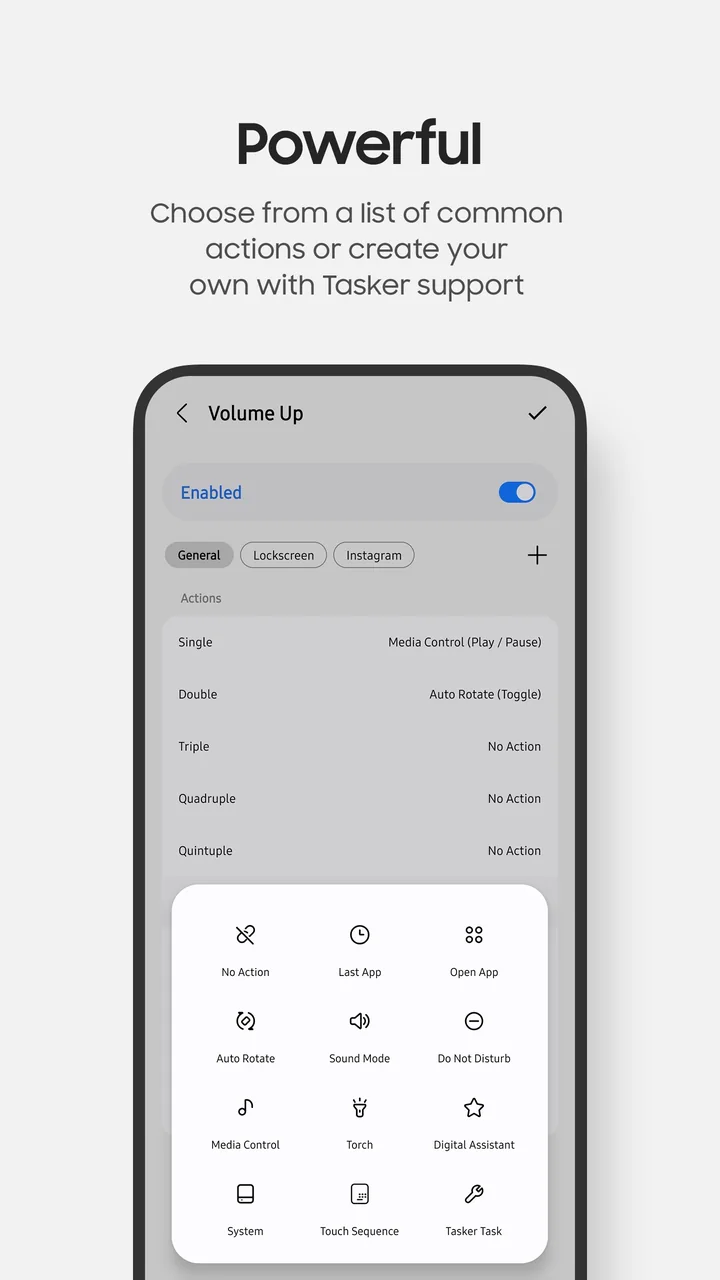
Add a second action or an app context
For an example second shortcut, assign Torch → Toggle to Double. KeyStar supports single through quintuple presses, with a long-press variant for each: up to ten action slots per button.
When single and double presses are both assigned, KeyStar needs time to tell them apart. The standard press delay controls that window. The last assigned action in a sequence runs without waiting for another press. Adjust delays in settings if your shortcuts feel too quick or too slow.
Contexts let you choose different actions based on the app in the foreground. For example, a button can control music generally but perform a different action inside a particular app.
Keep camera and alarm controls working
Some apps use volume buttons for their own controls, such as taking a photo or dismissing an alarm. Add those apps to KeyStar's Excluded apps list to let their normal button behaviour pass through. The built-in Camera and Clock apps are excluded by default.
When the screen is fully off and Always On Display is not showing, a mapped volume press can still change the device volume. The Restore volume setting restores the previous volume after the action in this situation.
If actions stop after a reboot, check Start on boot and the Shizuku setup. Find more details in KeyStar Support.