
PenStar maps S Pen clicks and Air Actions on Samsung devices that support Air Actions and run Android 8.1 or later. Create an App Action, choose the apps it applies to, and assign actions to gestures. All features and two App Actions are free. No root is needed.
Check that your S Pen supports Air Actions
PenStar needs a Samsung device and S Pen with Air Actions, on Android 8.1 or later. Check the S Pen settings on your device for Air Actions and make sure the S Pen is connected and ready.
Writing with an S Pen does not by itself mean Air Actions are supported. A non-Bluetooth S Pen cannot provide Bluetooth Air Actions. Check your exact device and S Pen before installing.
Download PenStar, then follow its setup prompts. Setup supports Shizuku, ADB, or wireless debugging. Read Logs and Accessibility access are required for PenStar's operation; other permissions depend on the actions you choose. The app explains each permission as you enable it.
What is an App Action?
An App Action is a collection of actions for S Pen gestures, applied to a set of apps. It can include one app or several. For example, a “Web Browsing” App Action could apply to both Chrome and Samsung Internet, with one action for a click and another for a directional gesture.
The free version includes every feature and up to two App Action collections. This is a limit on the number of App Actions, not a limit of two individual apps. A one-time purchase lets you add more than two collections, without ads or a subscription.
Create your first S Pen mapping
- Open PenStar and complete setup. Enable the service after granting the required permissions.
- Add an App Action. Use the plus button and give the App Action a useful name, such as “Media”.
- Choose the apps. Select the apps where this App Action should apply.
- Choose a gesture and an action. For a simple starting point, set Click to Media Control → Play / Pause.
- Save and enable the App Action. Open one of its selected apps, start playback, and click the S Pen button. Check that it pauses and resumes your media.
Add another gesture when the first works. You can use Double Click for a second media action, a directional gesture for a system action, or a Tasker task for a workflow of your own.
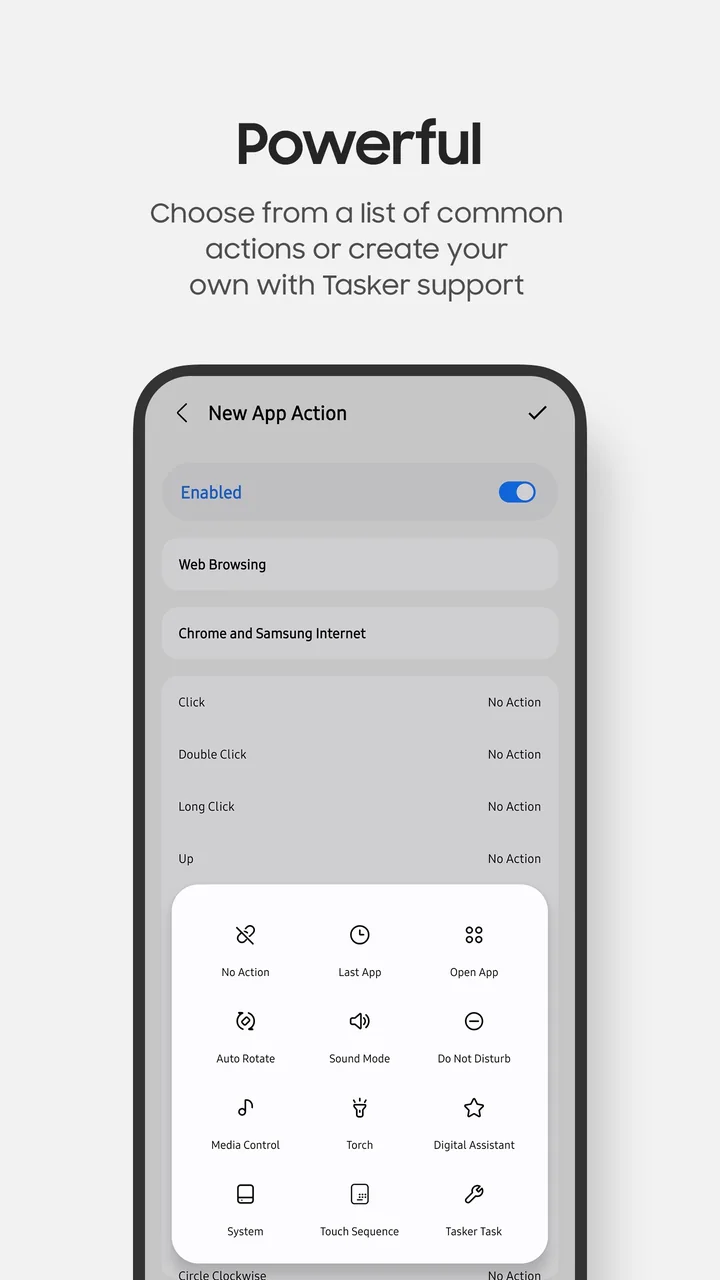
Choose gestures and actions that fit
PenStar supports click, double click, long click, left, right, up, down, pointy directional gestures, clockwise and counterclockwise circles, and shake. The available Air Actions depend on your device and S Pen.
Actions include opening an app, media controls, system settings, system actions, the torch, digital assistant, touch sequences, and Tasker tasks. A touch sequence lets you assign taps or swipes for a particular workflow. Keep the target app's layout in mind when you use screen-position-based actions.
Some actions depend on Android version. For example, the Screenshot action is unavailable on Android 8.1. Start with a simple action so you can confirm that the gesture is detected before building a more involved sequence.
If a gesture does not work
Check that the S Pen is connected, the PenStar service is enabled, the App Action is enabled, and the app you are using is included in that App Action. Review any permission or log-access prompt shown by PenStar.
If a double click is detected as two single clicks, try Simulate double click. If the service stops after a reboot or in the background, read the Shizuku setup guide and start-on-boot answer.
The PenStar Support page covers permissions, Secure Folder and Work Profile apps, Tasker integration, and other troubleshooting.